
- Messages
- 5,058
- Website
- www.xenfocus.com
Follow these steps to install your xenfocus style.
Method 1 (for xenforo 2.2 or newer):
1. Download the style from the Client Area.
2. Unzip the file on your computer, and you should see:
- xenfocus-readme.html
- style-*****.zip
3. Log into your admin cpanel, select the "Appearance" tab > and click the Import button.

4. Browse for the .zip file from your computer and press Import.

5. Once the style has been imported, we want to create a Child style which allows us to easily modify and upgrade the style if necessary. To do so, click the Add style button at the top, add your own Title and Description, and change the Parent Style option to your newly installed xenfocus theme.
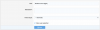
6. Now that your Child theme has been created, visit the Styles page and disable the Parent style for members since it's no longer necessary. Disabling the style simply removes it from the Style Picker at the bottom of your site. You can also set your Child style as default (if required).

7. All done! If you ever need to modify the style: modify the Child style but keep the Parent style untouched. If you ever need to upgrade the style, you simply import the new version, replace the Parent style when prompted, and your Child style will automatically update!
If you need to modify your theme, try and add all of your css changes into extra.less, and avoid modifying any of the template files if possible. This will make future theme updates very simple.
Method 2 (for xenforo 2.1 or older):
1. Download the style from the Client Area.
2. Unzip the file on your computer, and you should see:
- xenfocus-readme.html
- style-*****.xml
- "styles" folder which contains the images for your style
3. Using an FTP program, upload the styles folder to your xenforo folder. There will already be a styles folder, so simply merge the folders so they become one.
4. Log into your admin cpanel, select the "Appearance" tab > Import a style, and import the .xml file.
5. Once the style has been imported, we want to create a Child style which allows us to easily modify and upgrade the style if necessary. To do so, click the Add style button at the top, add your own Title and Description, and change the Parent Style option to your newly installed xenfocus theme.
6. Now that your Child theme has been created, visit the Styles page and disable the Parent style for members since it's no longer necessary. Disabling the style simply removes it from the Style Picker at the bottom of your site. You can also set your Child style as default (if required).
7. All done! If you ever need to modify the style: modify the Child style but keep the Parent style untouched. If you ever need to upgrade the style, you simply import the new version, replace the Parent style when prompted, and your Child style will automatically update!
If you need to modify your theme, try and add all of your css changes into extra.less, and avoid modifying any of the template files if possible. This will make future theme updates very simple.
Method 1 (for xenforo 2.2 or newer):
1. Download the style from the Client Area.
2. Unzip the file on your computer, and you should see:
- xenfocus-readme.html
- style-*****.zip
3. Log into your admin cpanel, select the "Appearance" tab > and click the Import button.
4. Browse for the .zip file from your computer and press Import.
5. Once the style has been imported, we want to create a Child style which allows us to easily modify and upgrade the style if necessary. To do so, click the Add style button at the top, add your own Title and Description, and change the Parent Style option to your newly installed xenfocus theme.
6. Now that your Child theme has been created, visit the Styles page and disable the Parent style for members since it's no longer necessary. Disabling the style simply removes it from the Style Picker at the bottom of your site. You can also set your Child style as default (if required).
7. All done! If you ever need to modify the style: modify the Child style but keep the Parent style untouched. If you ever need to upgrade the style, you simply import the new version, replace the Parent style when prompted, and your Child style will automatically update!
If you need to modify your theme, try and add all of your css changes into extra.less, and avoid modifying any of the template files if possible. This will make future theme updates very simple.
Method 2 (for xenforo 2.1 or older):
1. Download the style from the Client Area.
2. Unzip the file on your computer, and you should see:
- xenfocus-readme.html
- style-*****.xml
- "styles" folder which contains the images for your style
3. Using an FTP program, upload the styles folder to your xenforo folder. There will already be a styles folder, so simply merge the folders so they become one.
4. Log into your admin cpanel, select the "Appearance" tab > Import a style, and import the .xml file.
5. Once the style has been imported, we want to create a Child style which allows us to easily modify and upgrade the style if necessary. To do so, click the Add style button at the top, add your own Title and Description, and change the Parent Style option to your newly installed xenfocus theme.
6. Now that your Child theme has been created, visit the Styles page and disable the Parent style for members since it's no longer necessary. Disabling the style simply removes it from the Style Picker at the bottom of your site. You can also set your Child style as default (if required).
7. All done! If you ever need to modify the style: modify the Child style but keep the Parent style untouched. If you ever need to upgrade the style, you simply import the new version, replace the Parent style when prompted, and your Child style will automatically update!
If you need to modify your theme, try and add all of your css changes into extra.less, and avoid modifying any of the template files if possible. This will make future theme updates very simple.
Last edited:
